

The Apple TV 4K is one of the most popular streaming boxes on the market — and it’s for good reason. The Apple TV 4K, every generation of it, is still fast, has access to all the major apps, and ties in nicely with your greater Apple ecosystem. In fact, it’s still a formidable device even if it’s all you have from Apple’s line of products. That latter scenario describes me, and while I’m missing out on some extra features, it’s really not the end of the world.
After using my Apple TV 4K for several years, I started to pick up on some hidden tips and tricks that make my device feel more like my own. Many of these tips act as shortcuts that help you get from one area to another without having to hit too many extra buttons. Saving time is always nice, and if I don’t have to always open up another app, I’ll appreciate that.

- Brand
-
Apple
- Bluetooth codecs
-
5.0
- Wi-Fi
-
6
- Ethernet
-
Gigabit (128GB model only)
- Storage and RAM
-
64GB, 128GB
Put your favorite apps at the top of the home screen
It’s how you continue watching

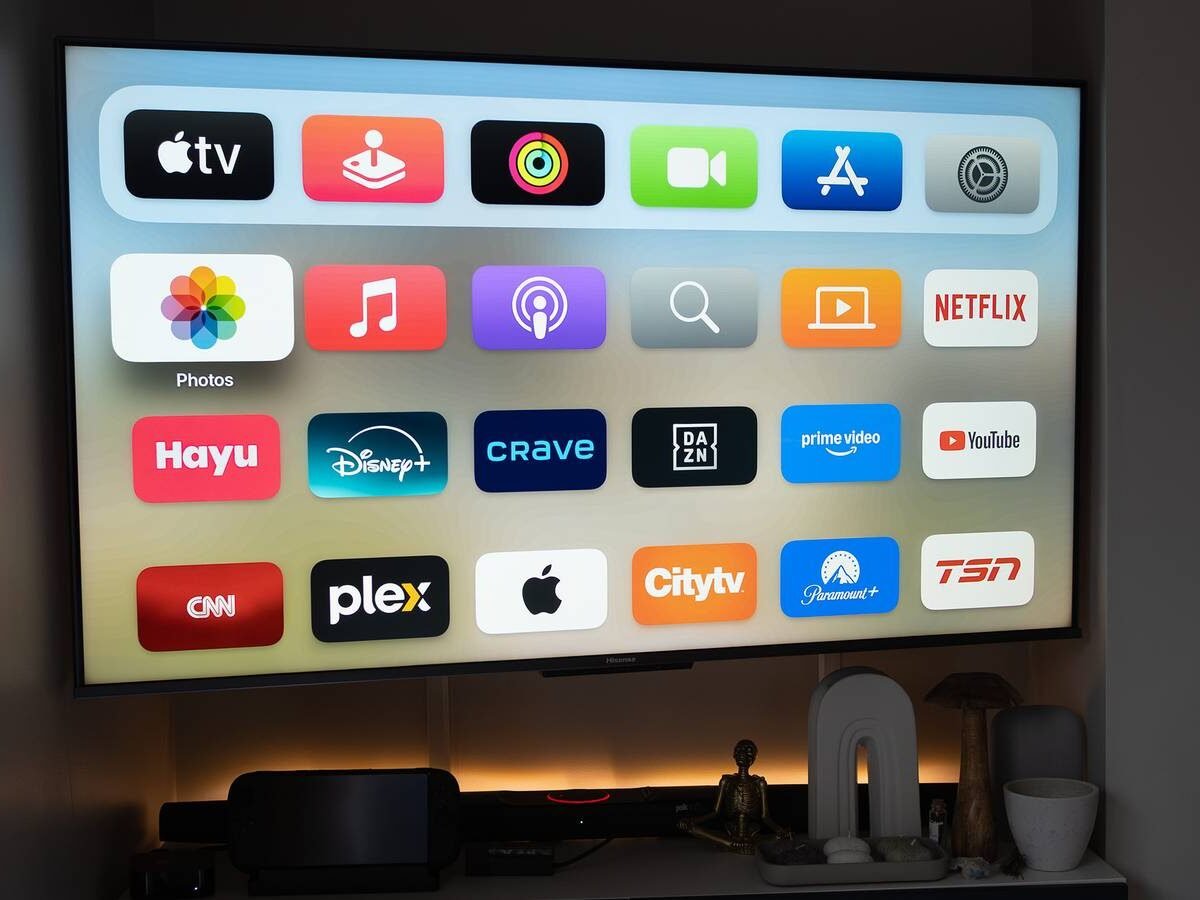
The Apple TV 4K has a very clean home screen, completely free of ads, but what you might not realize is that your app placement matters. At first glance, nothing jumps out at you, but if you place your apps in the very top row, you unlock a shortcut of sorts.
What I mean by this is that hovering over any of the apps in the top row will let you pick the show you were just watching and jump back into it. You do have to dig into your settings first and turn on the set Top Shelf to Continue Watching option. Once you do this, you can hop back into things easily. Yes, it also works with Netflix, a company that doesn’t seem to want to fully integrate with the Apple TV interface. I recommend putting your most-watched apps at the top after turning this setting on. It’s a nice feature that lets you save a few button presses.
Organize your home screen with folders
Less scrolling, more watching

I have a lot of apps installed on my Apple TV 4K, and while it doesn’t take a ton of time to scroll through them all, it’s nice to avoid doing that. A good solution to that is organizing things into folders. For example, your most-watched streaming apps could all be put into a single folder. This means anytime you want to watch something, it’s all tucked away in an easy-to-find location.
The downside here is that your home screen might look a little too empty with everything put away into a folder. If you’re okay with an overly clean-looking display, then this is a good solution. A lot of people only install the apps they need, so there’s not a lot of scrolling to begin with. I think it’s something worth doing once you have to start scrolling on the home screen. At that point, it’s more annoying than anything, so do a little bit of organizing if you can.
Make yourself a quick shortcut home
Easy way to change apps

The Apple TV 4K doesn’t have many buttons on its remote, so it’s important to make them count where you can. Something you can actually do via the settings is make the home button on your remote take you to the actual home screen. By default, it opens up the Apple TV page, which is fine, but I’d rather it be a true home shortcut. You can do this very easily just by going into the Remotes and devices part of your settings set your TV home button to the home screen.
Another workaround to this that helped me out was just getting a universal remote. I liked the Apple TV remote, but its limitations were abundant, and a universal remote gives me far more versatility than it could ever give me. For those of you who don’t have that luxury, I think changing what your home button does is something you should do immediately upon setting up your device.
Force close your apps with two button presses
Sometimes you need to do it

If you have an old Apple TV 4K like me, then you have to close some apps down from time to time. You’d think exiting the app would close it, but that’s not the case. Your Apple TV 4K keeps those apps running in the background, which is nice for when you open them back up and don’t have to load anything.
My first-gen model is old enough that I have to force close these apps, and you can do that by double-tapping the home button. This brings you to a screen that shows all of your apps, and from there, you have to swipe up on the ones you want to close. It’s worth doing this periodically if you are noticing some slowdown on your device.