
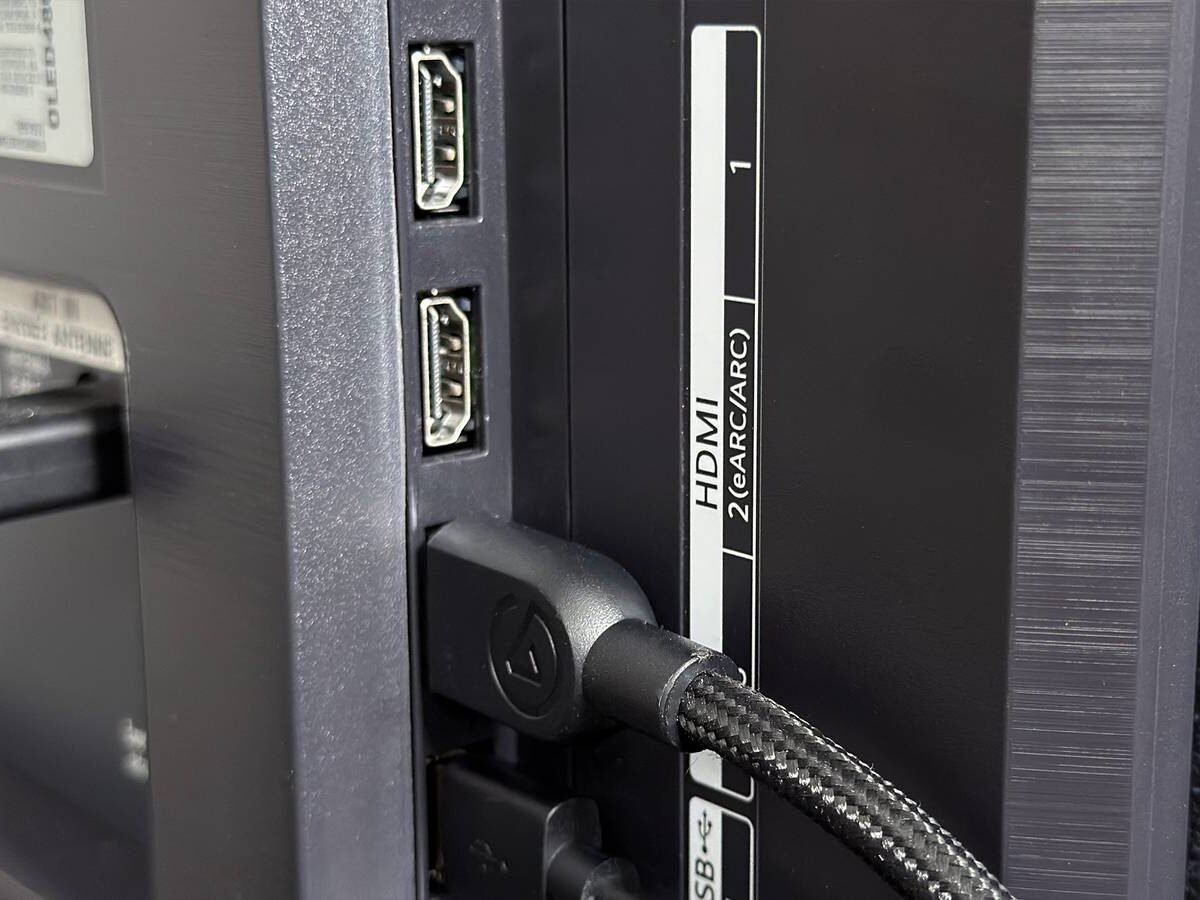
You might not realize it, but there have been several generations of HDMI cables at this point. HDMI 2.2 is on the horizon, but your selection of cables is likely made up of 2.0 and 2.1 cables, all depending on the age of your devices.
At the time of this writing, HDMI 2.1 is the mainstream line that’s available, so if you’re looking to get the most performance possible from your devices, this is the cable you should be using. However, it’s important to note that using a 2.1 cable isn’t magic. It won’t give your device extra performance if you don’t have the necessary settings toggled on with your TV.
As you might know, your PS5 and Xbox Series X both have VRR support, and you can get up to 120 FPS in select games. If you have a TV that has those features, you might also know that they don’t just simply work out of the box. For my TV, a Sony Bravia X90J, I have to go into the settings and turn on a specific setting depending on whether I want VRR or Dolby Vision. It’s very easy to miss, and if you don’t do it, you’re leaving performance on the table.
Turn on your enhanced format
It’s an important step

An important step that isn’t abundantly clear is that you need to change a setting on your TV itself to get the most performance. Luckily, it doesn’t take a lot of time, but it is annoying that you have to do it. For my TV, it means opening up the settings and navigating to HDMI Signal Format. From there, I had to change from Standard to Enhanced format.
Building off that, that’s where I get to pick between Dolby Vision or VRR. I have my Xbox Series X plugged into the HDMI 4 port with an HDMI 2.1 cable since I want to use VRR with it. For HDMI 3, I have it set to Dolby Vision, and that’s where I have my receiver plugged in. I plug all my other devices into my receiver itself since I want to prioritize picture quality there. I could have my Xbox plugged into the receiver too, but I’d rather not switch back and forth between the settings, so that’s why I settled on what I did.
Depending on your TV, the setting you have to change might have a different name. What you’re looking for is something that lets you toggle on an enhanced setting. I didn’t have to dig deep to find mine, and this is a TV we’re talking about — there’s only so many settings to look at.
Remember, this mode doesn’t mean anything if you aren’t pairing it with an HDMI 2.1 cable. HDMI 2.0 is still a formidable format, and it’s actually good enough for most devices, but your game consoles are a situation where you’ll want the newest cable and this mode turned on. I don’t think there’s any downside to having all of the ports set to Enhanced as you can, so you might as well toggle them all on.
Sit back and enjoy your performance gains
Get the most out of your TV

If you went through the trouble of researching a TV that comes equipped with VRR, you might as well take the extra steps to make sure you’re actually using it. To be fair, your PS5 and Xbox have a screen that tells you what features you have available to you, so if you don’t have something turned on with your TV, the console will tell you that.
I won’t lie and tell you that it’s not easy to miss these settings, because it is. To make matters even worse, a lot of what you have plugged in your TV’s HDMI ports won’t see any difference. VRR is something that only applies to your game consoles, so it’s easy to not even think about it if you’re not a gamer. However, Dolby Vision is something that’s included with many streaming services, so you might as well enhance your picture quality if you have the ability to.
Then again, your TV will still have regular HDR10 support, so it’s another thing that’s easy to miss unless you’re specifically looking for it. I hope that you managed to stumble across these words and they help you unlock some performance from your TV that you’re not getting currently. I would hate to spend all that money on a TV only to not come close to maximizing its value. This is why one of the first things I do when I buy a TV is dig through the settings and see if there are things I want to turn on. Oftentimes, there are things I want to make sure are turned off. Yes, I’m looking at motion smoothing. That’s something that I don’t think has any place in TVs, but that’s a conversation for another day.